How Do I Use an AI Agent from the Command Line?
An AI agent CLI is a program such as Claude Code, Codex or Gemini CLI that runs in your terminal. You describe a task in plain English, it reads files, runs commands and edits code on your machine, and it asks before anything destructive. To use one: install it with a single command, open a terminal in the project directory, and type what you want done. Three steps, and the first two take about a minute.
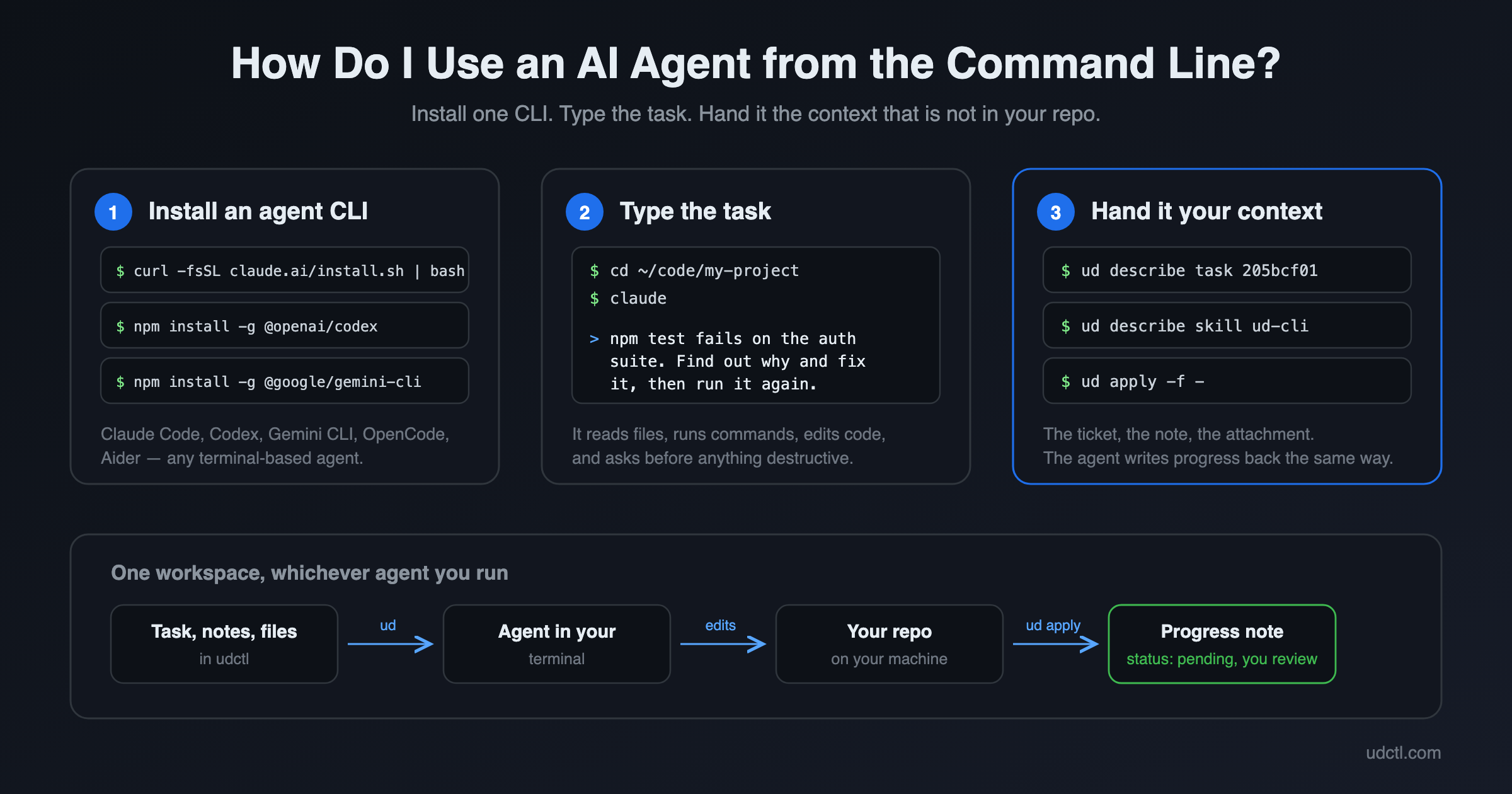
The rest of this page is the long version: which CLI to install, what to type, and how to give the agent the context that is not in your repository.
1. Install one agent CLI
Pick one. These are the install commands udctl's desktop app prints when it finds the binary missing on your machine:
| Agent CLI | Install | Then run |
|---|---|---|
| Claude Code | curl -fsSL https://claude.ai/install.sh | bash | claude |
| Codex | npm install -g @openai/codex | codex |
| Gemini CLI | npm install -g @google/gemini-cli | gemini |
On Windows, Claude Code installs with irm https://claude.ai/install.ps1 | iex; the other two use the same npm command.
Install commands and package names change. If one of these fails, the vendor's own install page is the authority, not this post.
The first run asks you to sign in. After that the binary is on your PATH and behaves like any other command-line tool.
2. Give it a task from the command line
Change into the project directory first. The directory you start in is the agent's working context, and most of them will not read files above it without being asked.
cd ~/code/my-project
claude # or: codex / gemini
Then type the task. Three that work on day one:
Summarise a repository you just cloned.
Read this repo and tell me in ten lines what it builds, what the entry point is,
and how to run the tests.
Fix a failing test.
`npm test` fails on the auth suite. Run it, find out why, fix it, and run it again.
Turn a wall of meeting notes into to-dos.
Read notes/2026-09-18-standup.md and give me a list of action items with owners.
The agent will show you each command before it runs it and each edit before it writes it. Approving one by one is tedious for a long job and worth it for the first few, until you know how it behaves in your repository.
All three CLIs also take the task as an argument so you can call them from a script, but the flag differs (claude -p, codex exec, gemini -p). Run --help on the version you installed rather than trusting a flag copied from a blog post.
3. Give it your context, not just your code
The agent can read your code. It cannot read the reason for the change: the ticket that explains what the customer actually reported, the note from three weeks ago where you rejected the obvious fix, the screenshot attached to the bug. That context is in a browser tab, and the agent has no browser tab.
udctl (UnDercontrol) puts it in the same terminal. Its CLI, ud, reads and writes the same tasks, notes, comments and attachments you see in the app:
npm install -g @oatnil/ud # Node.js 18+
ud login
ud get task # confirm you can see your work
Now hand the agent a task by id instead of retyping it:
ud describe task 205bcf01
You do not have to teach the agent the commands. The CLI carries its own agent-facing reference, so the agent loads it at runtime:
ud describe skill ud-cli
That is the whole setup, and it is covered in full on the AI agent CLI page. When the agent is done it writes progress back the same way it read the task, with the commit hash in the note:
cat <<'EOF' | ud apply -f -
---
task_id: 205bcf01
---
Fixed the token refresh race in the auth interceptor. Commit: def456
EOF
Tasks are not the only surface. Notes, expenses and accounts are the same kind of Markdown document in the same store, edited with the same editor, and reachable with the same CLI. If your context for a job is half a spec and half a receipt, both are one ud command away. The CLI reference lists every resource.
4. Let it run without you
Typing into a terminal means sitting at the terminal. Two ways around that, both built on the same daemon:
Start a session from a task. Your desktop app registers as a daemon. Open a task, pick that daemon, start a workspace session, and the app opens a window with the task on the left and the agent already running on the right, launched with the task as its prompt.
@mention an agent in a task comment. The mention wakes the agent on the machine running your daemon, and it picks the task up with the description, notes and links as context. Two things to know: a mention only wakes an agent from a comment, not from a note, and mentions are not queued, so if the daemon is offline the delivery is dropped rather than held.
Either way the agent moves the task to pending when it thinks it is done, not to done. You stay the review gate.
If you would rather not open the app at all, Alfred is the same mechanism behind a chat window: send a message in Telegram, and it delegates to your agents and reports back in the thread.
FAQ
Which agent CLI should I pick?
All of them take the same shape, so pick by the model subscription you already pay for: Claude Code for Anthropic, Codex for OpenAI, Gemini CLI for Google. OpenCode and Aider are model-agnostic and worth a look if you switch providers often, or if you want to point the agent at a model you run yourself. udctl's desktop app detects seven of them by binary name — claude, codex, opencode, aider, gemini, copilot, qwen — and none of the features on this page are tied to any one of them.
Is it safe to let an agent run commands?
It runs with your user account's permissions, so treat it the way you would treat a shell script someone sent you. Two habits cover most of it: work in a directory under version control, so every edit shows up in git diff before it can ship, and leave the approval prompts on until you have watched the agent work through a few jobs in that repository. Every one of these CLIs also has a mode that stops asking. That mode is for a container, not for your laptop.
Does an agent CLI work offline?
No. The agent runs locally but the model does not, so every turn is a network call to the provider, unless you are running a model-agnostic CLI against a model on your own hardware. Your task data is a separate question: udctl's backend can be self-hosted, so the context the agent reads can stay on your machine even when the model call leaves it.
Do I need an editor plugin?
No. ud is a plain command-line tool with no editor integration, which is why any terminal-based agent can drive it with the shell access it already has. If your agent can run ls, it can run ud.
Install one of the three CLIs above, then install ud and run ud describe skill ud-cli in the same terminal.