Open With
Every file, opened the right way.
udctl shows each file in a viewer that fits it — a picture in the image viewer, a diagram in the diagram editor. Switch viewers whenever you like, set your own default, or teach udctl a brand-new file type with a plugin.
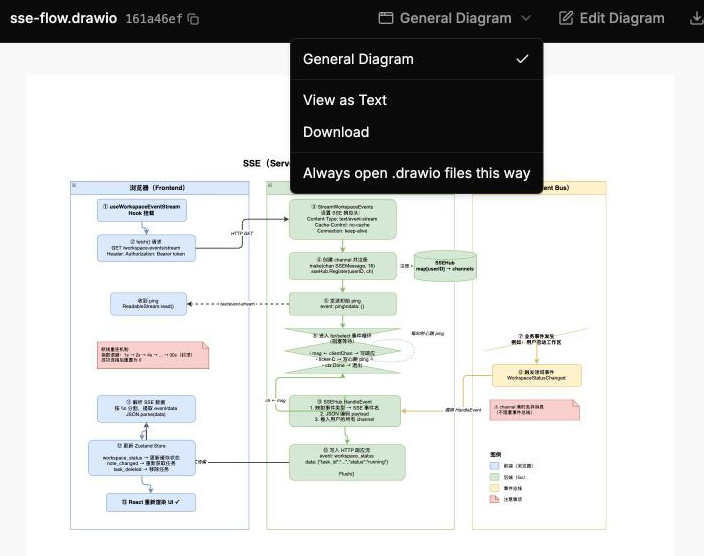
The right viewer
The right view, and yours to change.
Switch the viewer in a click
Most of the time udctl picks the right viewer automatically from the file name. When a file can be shown more than one way, the Open with button above it shows which viewer is in use and lets you switch to another — plus View as Text and Download, always available. When more than one plugin can open a file type, each one appears in the menu as its own choice.
Set a default that follows you
Always want a certain file type to open the same way? Choose "Always open .xyz files this way". The default is tied to your account, so it follows you across devices and changes nothing for anyone else.
Switching & defaults, in the docs →Built in
Viewers for the file types you use most.
Diagrams
.drawio general diagrams and udctl dataflow diagrams
Excalidraw
Hand-drawn style sketches
Images, video & audio
Preview media inline
PDF & Word
Documents open in place
Spreadsheets & tables
Rows and columns, rendered
Markdown, code & text
Syntax highlighting built in
Presentations & HTML
Slides and web pages
Anything else? Any file type without a built-in viewer cannot be previewed on its own — instead of a blank preview, udctl tells you no app can open it and points you to the plugin library, beside a download link, so you can add a viewer for it.
Your own viewer
Teach udctl a new file type.
A plugin is one self-contained .html file — much like installing an app so your OS can open a new kind of file. udctl hands the plugin the file to show, and the plugin draws it. A complete, working plugin is just this:
<!doctype html>
<html>
  <body>
    <pre id="out">Waiting for a file…</pre>
    <script>
      // 1. Listen for the file udctl will send.
      window.addEventListener('message', function (event) {
        var msg = event.data;
        if (!msg || msg.udPlugin !== 1 || msg.type !== 'file') return;
        var text = new TextDecoder().decode(msg.bytes);
        document.getElementById('out').textContent =
          msg.fileName + '\n\n' + text;
      });
      // 2. Tell udctl we are ready to receive it.
      parent.postMessage({ udPlugin: 1, type: 'ready' }, '*');
    </script>
  </body>
</html>
Sandboxed, and only yours
udctl runs each plugin in a locked-down sandbox: it can read and display the one file you opened, but it cannot reach the network, see your other files, or touch your account. You see what a plugin can do and confirm before it installs — so the rule is simple: install only plugins you trust. Plugins you install are yours alone.
Plugin library
Browse, install in one click, share your own.
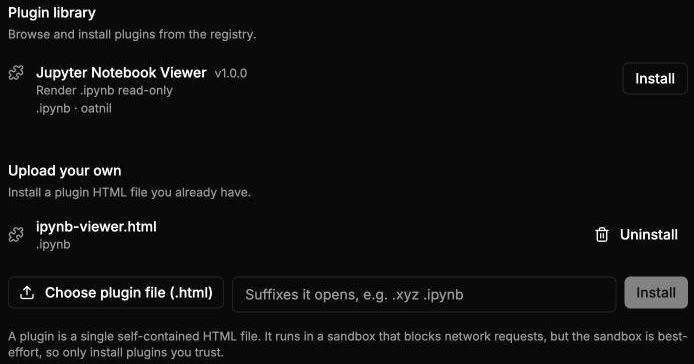
One click from the library
Open Settings → Resource plugins → Plugin library to browse plugins published to the official registry and install one with a single click. udctl verifies each plugin against a fingerprint in the registry, so what you install is exactly what was published.
A ready-made example
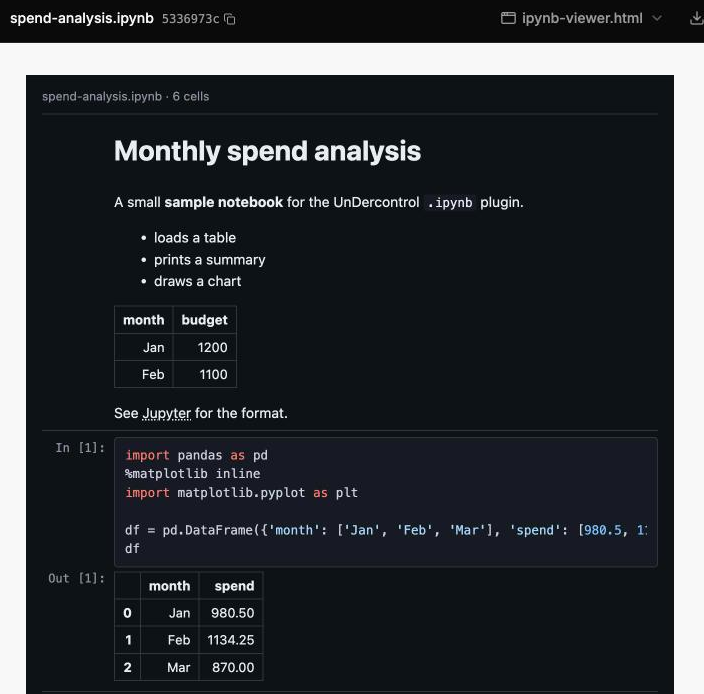
The official Jupyter Notebook Viewer renders .ipynb notebooks — markdown and code cells, highlighting, tables and images. Install it from the library to try plugins in seconds.
How the registry works, in the docs →Submit your own
Publish a plugin for everyone.
Fork the registry
Fork the public repository oatnil-top/ud-registry.
Add your file and entry
Drop your built .html under plugins/<id>/<id>.html and add a matching entry in plugins.json .
Open a pull request
An automated check verifies the fingerprint, a reviewer reads the source, and merging publishes it to the library.
Where it works today
Open with, and everything on this page, is live now in the web app at app.udctl.com. It is coming to the desktop app in an upcoming release — until then, use the web app for these features.
Open anything. Your way.
Try the viewers in the web app, read the full guide, or browse the plugin registry.