Where do the images in your markdown go? Paste once, and they are on the web, your phone and in local folders
Writing in markdown is pleasant until you need a picture. In common markdown editors like Obsidian, Typora and VS Code, an image is a separate file next to the note, and where it goes is up to you:
- Obsidian lets you choose a default location for new attachments under Settings, Files & Links: the vault root, a folder you specify, the same folder as the current note, or a subfolder under it (docs).
- Typora, when you insert a local image, refers to the image at its original path by default. To have it copied into a folder, you set that in Preferences or in the document's front matter (docs).
- VS Code copies images you paste or drop from outside the workspace into the workspace, into the folder set by
markdown.copyFiles.destination. The setting that updates links when a file is moved or renamed,markdown.updateLinksOnFileMove.enabled, defaults tonever(docs).
Once that is set up, there is more to handle. Move the note and a relative path can break. Open it on your phone and the picture has to arrive through some other sync, for example Obsidian Sync, Obsidian's own paid monthly subscription (pricing).
This post shows how udctl (UnDercontrol) removes those steps: you paste the picture in, moving the note never breaks it, the same note on your phone already has it, and plain local files are one command away. The last section covers non-image files such as a PDF.
We made an 85-second video of this: watch it on YouTube. This post is the written version. The travel notes and photos in the screenshots are made-up demo data.
No folder to pick: paste it or drag it in
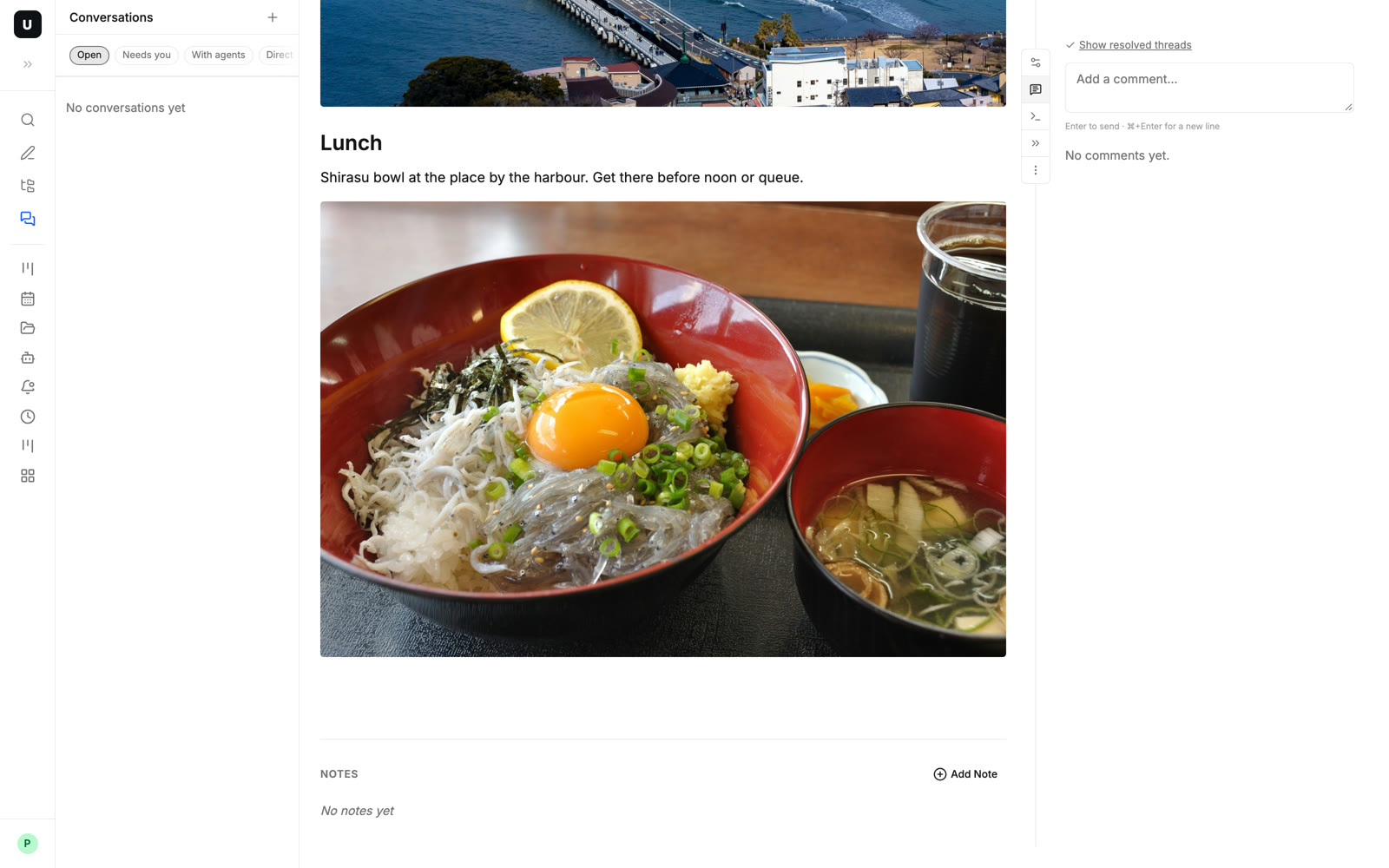
Editing a note in the udctl web or desktop app, take a screenshot and press Cmd+V, or drag an image file into the editor. The image is uploaded and inserted where your cursor is. Insert Image on the toolbar and Image in the slash menu work too.
You don't save a copy first, pick a folder or type a path.
Move or rename the note, and the picture stays
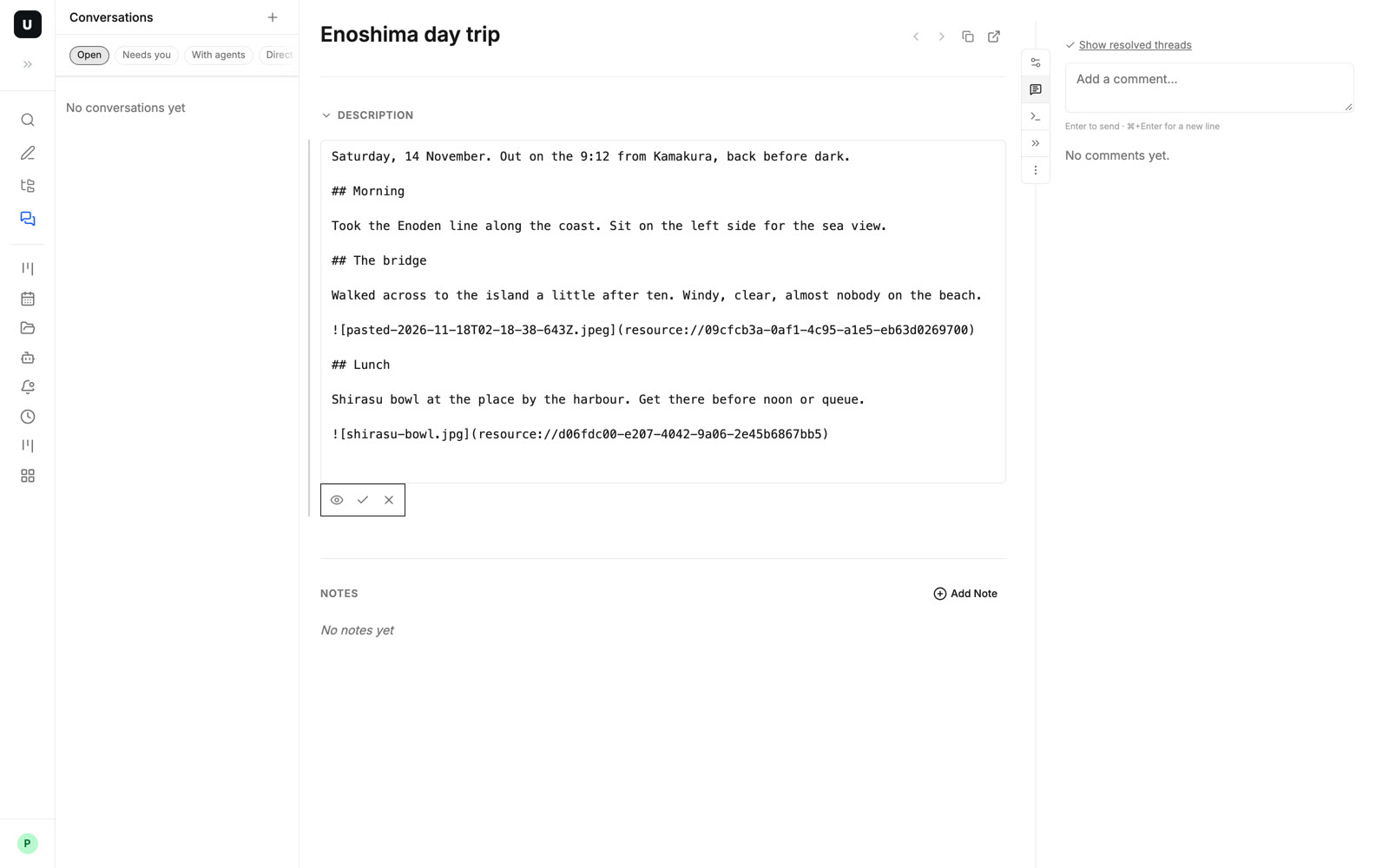
Switch to Source Mode and the pasted image is one line:

It points at the file by id, not by path. Move the note to another folder or change its title, and the line stays the same and the picture still shows.
You choose where the files live, and you can see them
The file itself is uploaded to your udctl server and stored where you choose: the server's own disk, or an S3 compatible bucket.
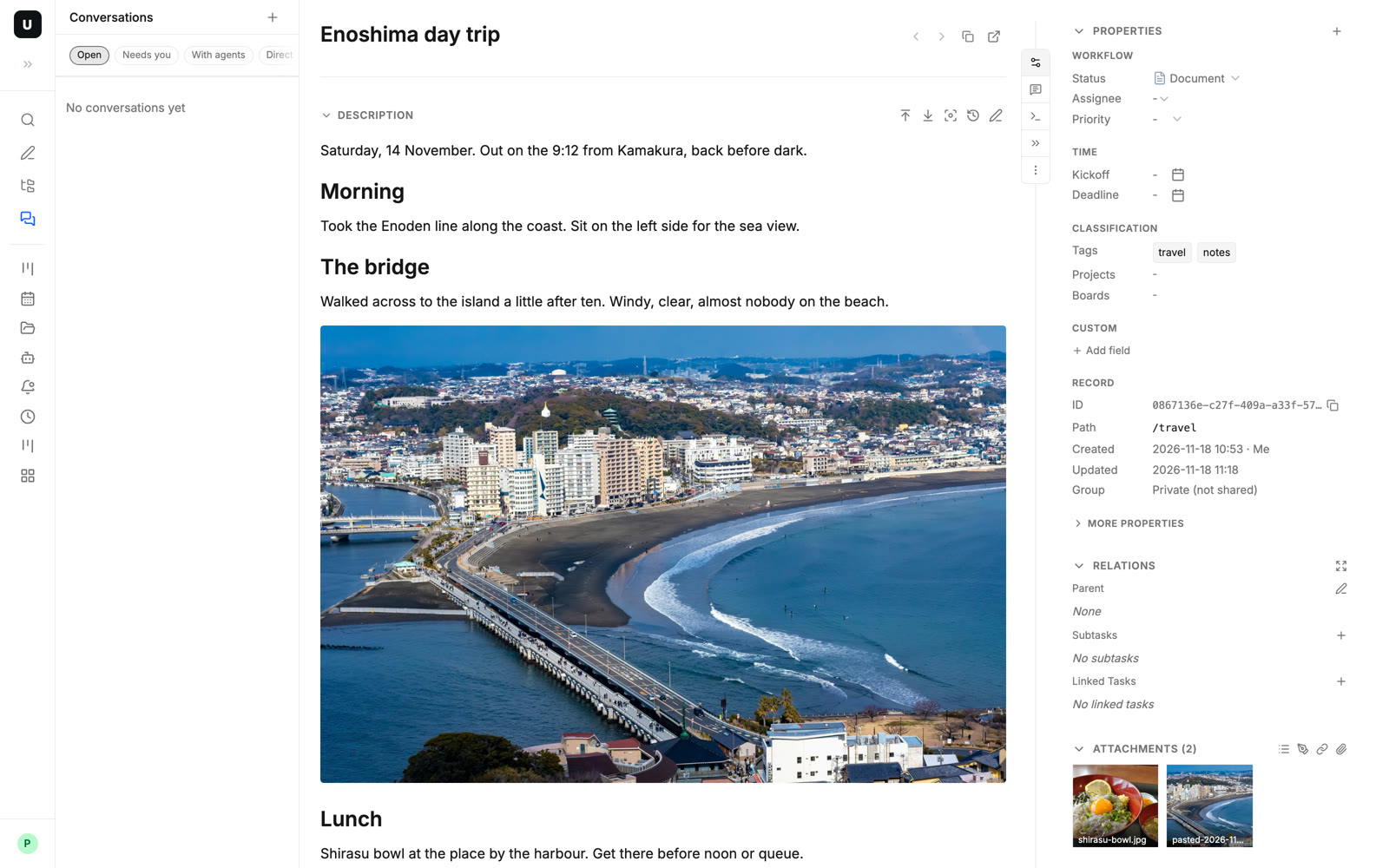
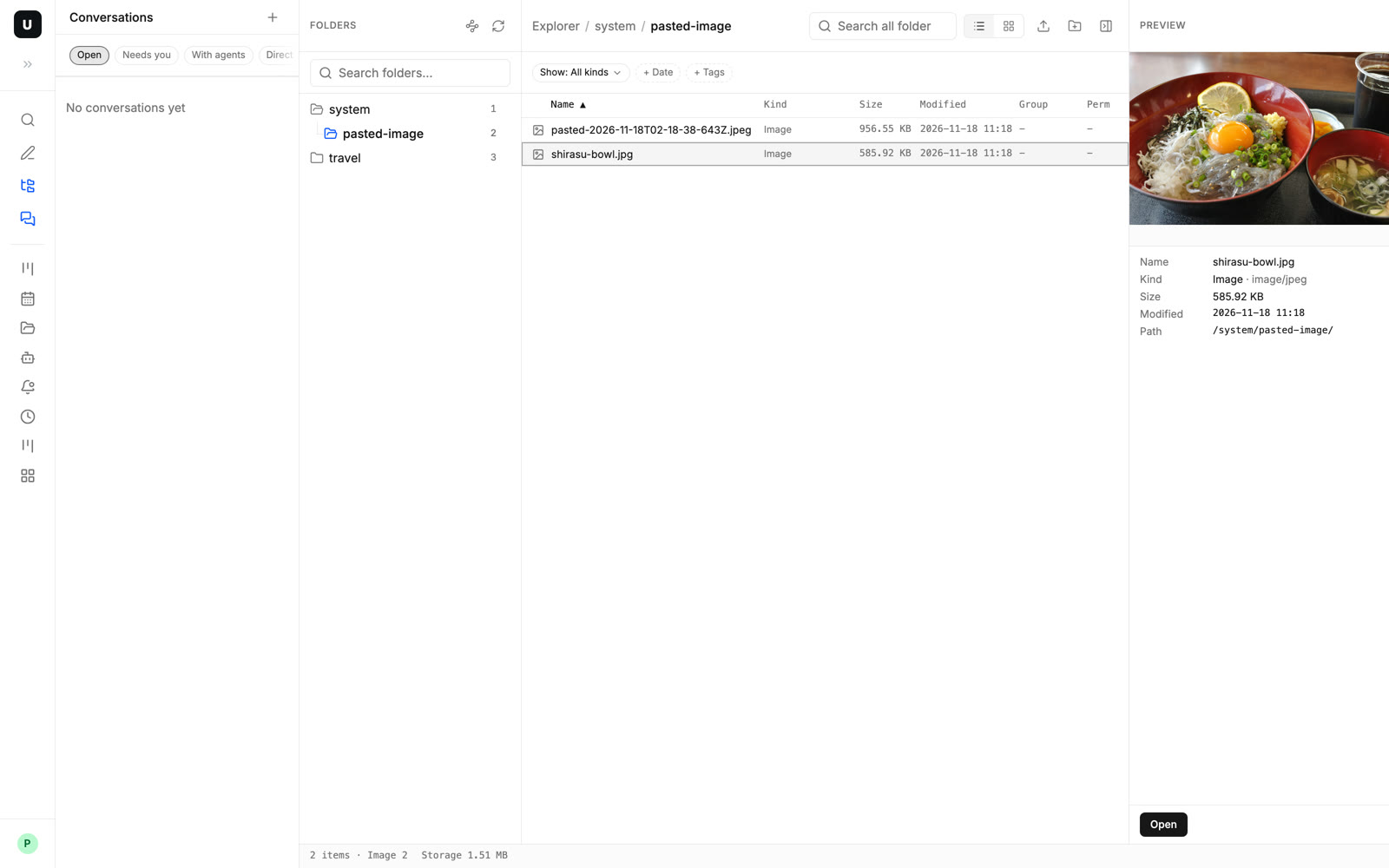
Uploaded files are not hidden away. The Attachments section on the right side of the card lists every file the note uses, and the Explorer shows them by folder, with name, size, type and modified time.
On your phone, the pictures are already there
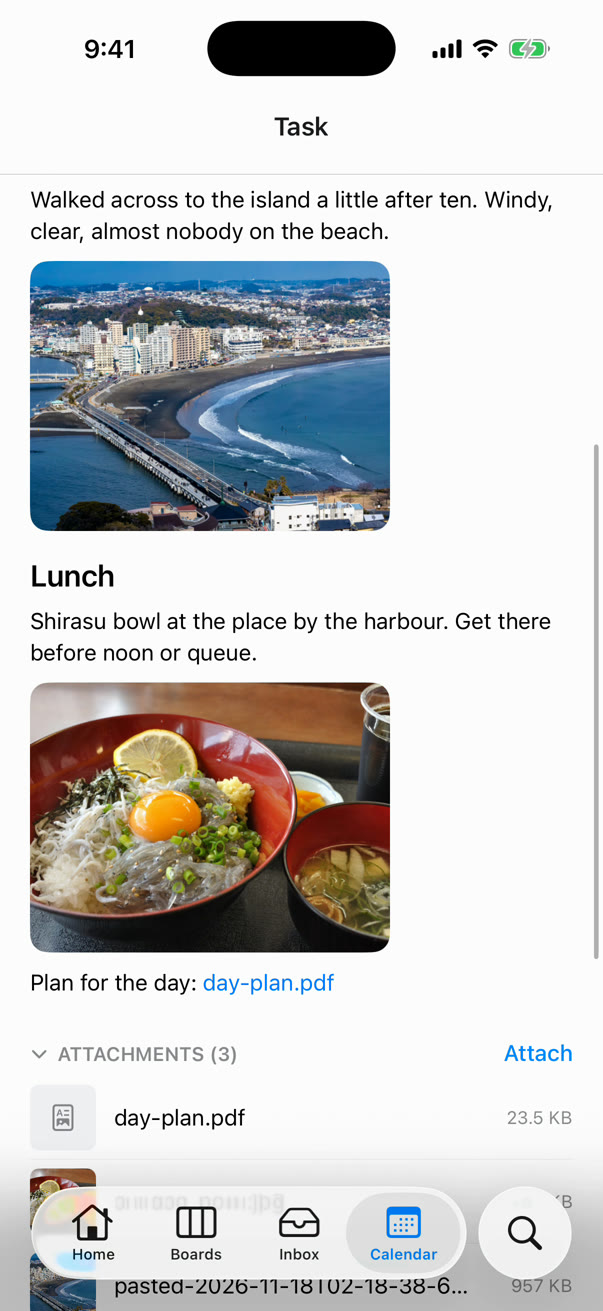
The web app and the mobile app connect to the same udctl server, so when you open the same note on your phone, the pictures are already in it. No second upload, no cloud drive to sync.
udctl uses one markdown editor for tasks, notes, expenses and accounts, so pictures go in and show up the same way in all of them.
Want plain files? One command pulls them to your disk
Sometimes what you want is a folder: to back it up, open it in another editor, or hand it to Claude Code, Codex, OpenCode or any terminal-based agent.
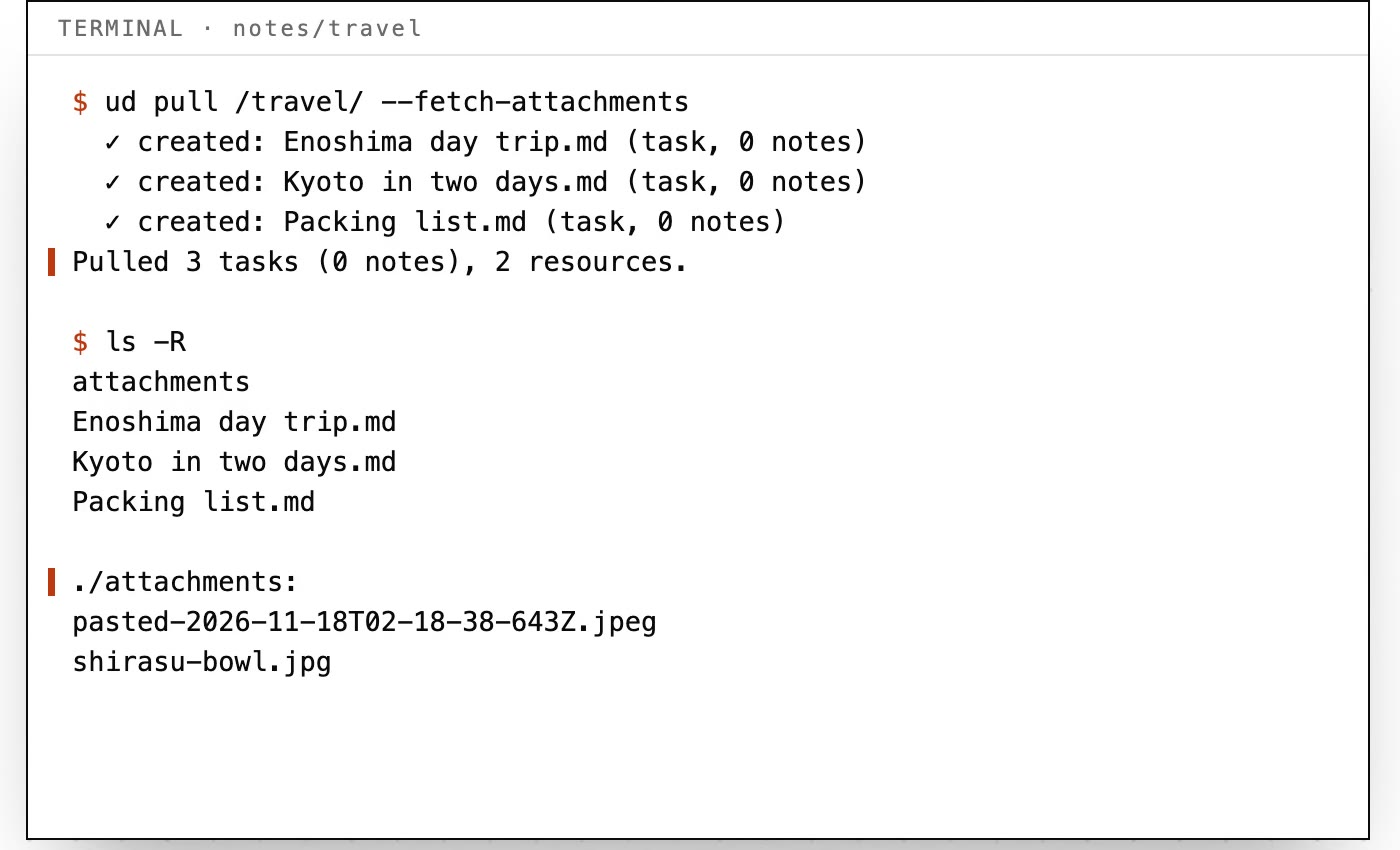
ud pull /travel/ --fetch-attachments
This pulls the notes under /travel/ to local .md files, with the pictures in an attachments folder beside them. In the text, images are referenced by file name, as ![[shirasu-bowl.jpg]], the same syntax Obsidian uses to embed files.
Not only pictures: any file can go into your markdown
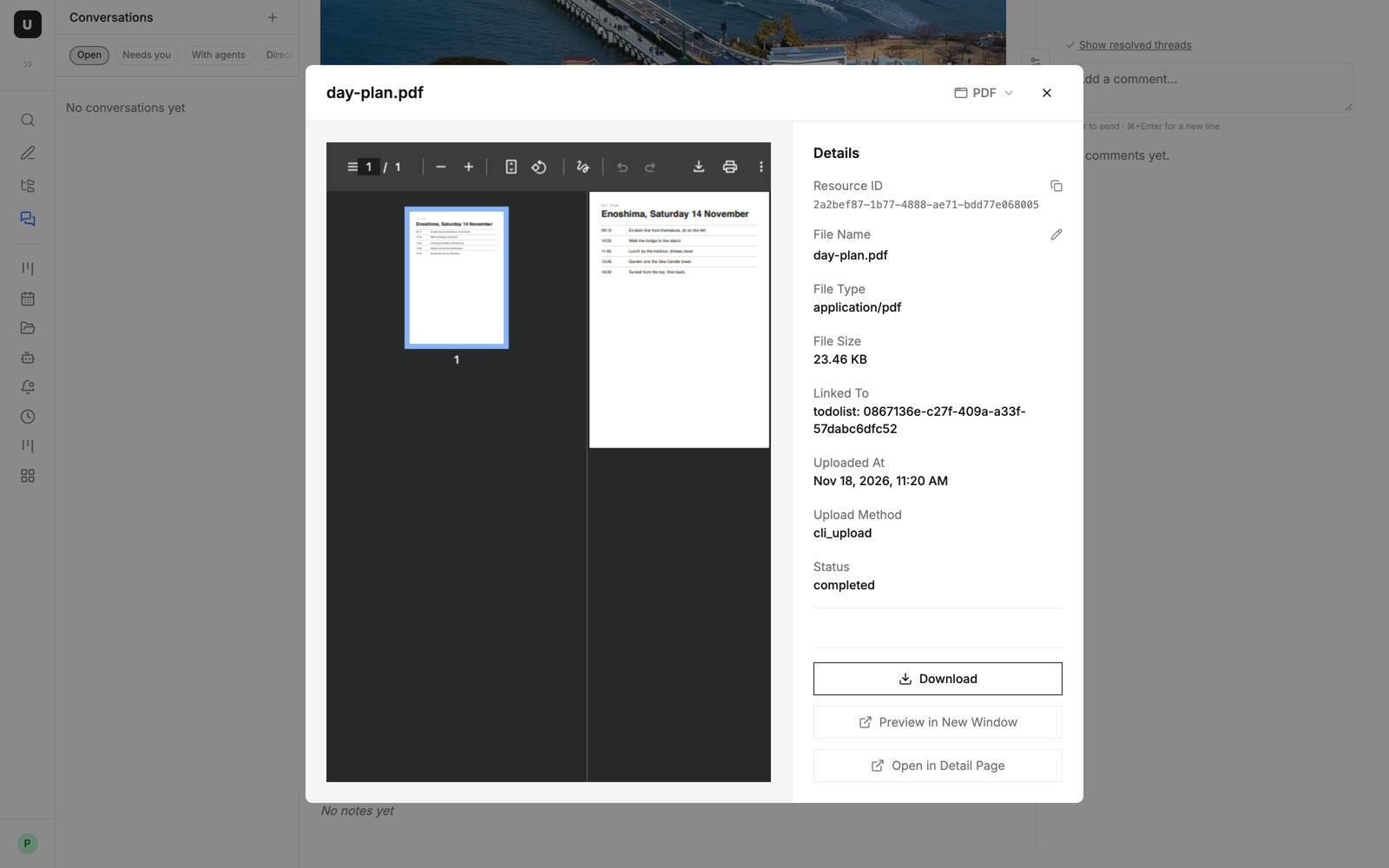
The local folder can be pushed back too. Put a PDF next to the note, add a line linking to it, and run ud push. The PDF is uploaded to the server. Back in the browser, it is a link in the note that opens a preview right there, with a download button.
When you are not in a terminal, you can upload any file in the card's Attachments, copy its reference with Copy reference, and paste it into the text.
Typical scenarios
- Travel notes: on your computer, paste the day's photos under the matching paragraphs. Open the same note on your phone while you are out, and the pictures are there.
- Technical notes: paste error screenshots into a debugging log. Move the note to another folder later, and the screenshots still show in place.
- Meeting notes with handouts: upload the PDF from the meeting to the card's Attachments, copy its reference and paste it next to the agenda. Everyone in the meeting can open it from there.
- Handing work to an agent:
ud pulla folder to your disk and the agent reads ordinary .md and image files. Files it adds go back withud push.